Introducing FenceGPT in Elite Technique
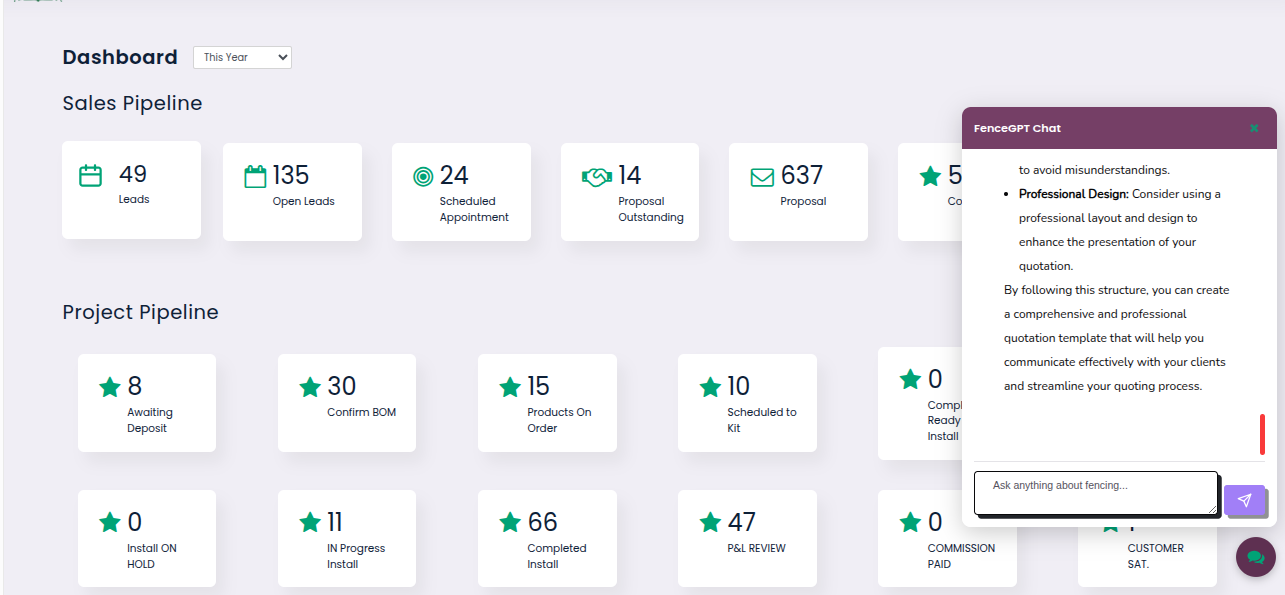
Users can now subscribe and access FenceGPT directly inside Elite Technique — putting specialist-level fencing and gate automation knowledge right at your fingertips. Simply ask a question and receive accurate, actionable answers instantly — no delays, no digging through resources, no uncertainty. Consider it your round-the-clock fencing expert, always available within Elite Technique to support every decision and keep your projects on track. Interested in subscribing to FenceGPT? Reach out to us to get started.
Dynamic Work Order Breakdown Layouts
The printed layout of a Work Order in Elite Technique automatically adjusts based on the Breakdown option chosen on the proposal. Selecting Breakdown Summary, Order Lines, or Sections will determine how the Work Order is formatted and presented when printed — following the same structure as Proposals, excluding any pricing details.
Easy automations
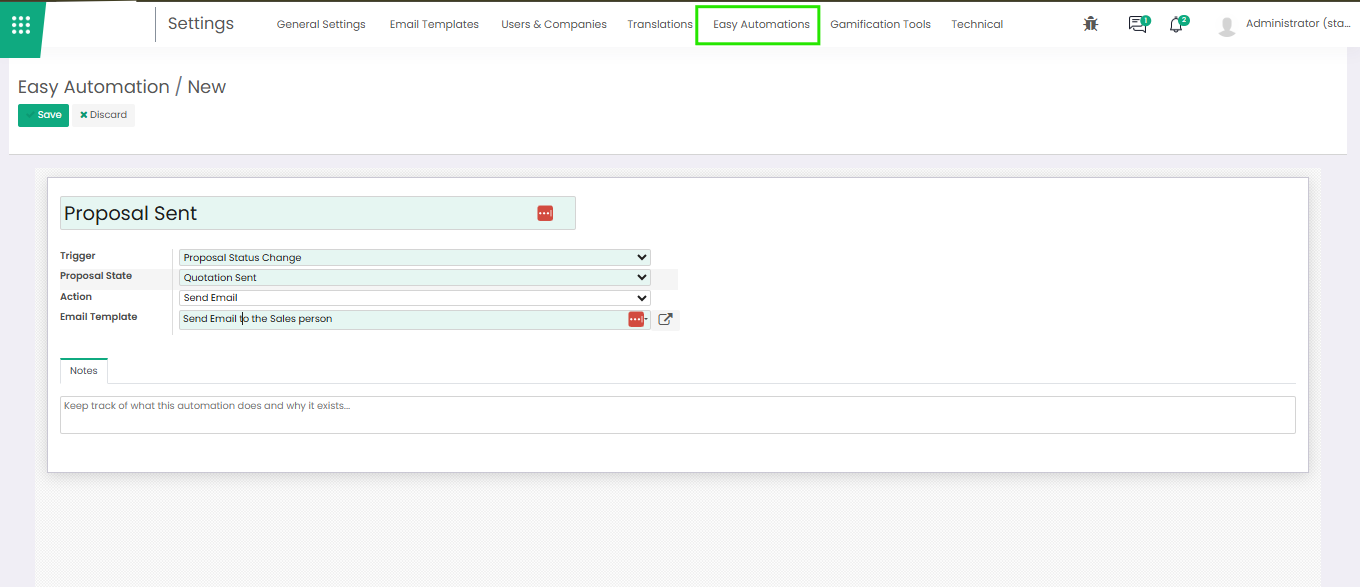
Build powerful workflow automations in seconds — no coding required. Easy Automations lets you set a trigger, define a condition, assign an action, and select the email or SMS template to send — all from one simple, easy-to-use form. Whether you need to notify your sales team when a proposal is sent, or keep customers in the loop with a timely SMS, Easy Automations handles it instantly. No developers, no complex configurations — just simple automation that works the way your business does
Extension of the job type/project mapping functionality to allow certain job types to produce multiple projects
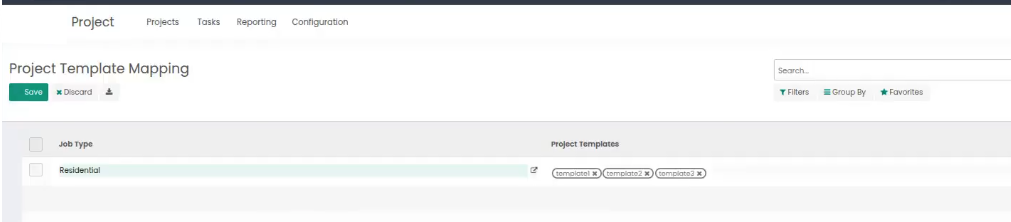
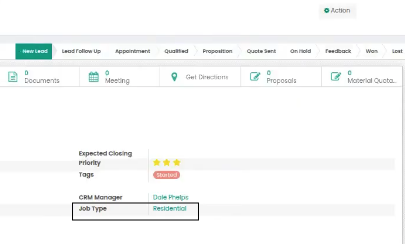
In Elite Technique, Job Types can now be configured with multiple Project Templates within the Project Template Mapping. When a Job Type is assigned to an opportunity and a proposal is confirmed, the system automatically generates a project for each template linked to that Job Type — naming each project after the Sale Order number, the customer name, and the corresponding Project Template.
How it works:
1.Navigate to the configuration settings and set up multiple Project Templates for each Job Type under the Project Template Mapping.
2. Assign a Job Type to a lead/opportunity.
3.When a proposal is confirmed the system will instantly generate a separate project for each Project Template linked to that Job Type, with each project named after the Sale Order number, customer name, and Project Template name.

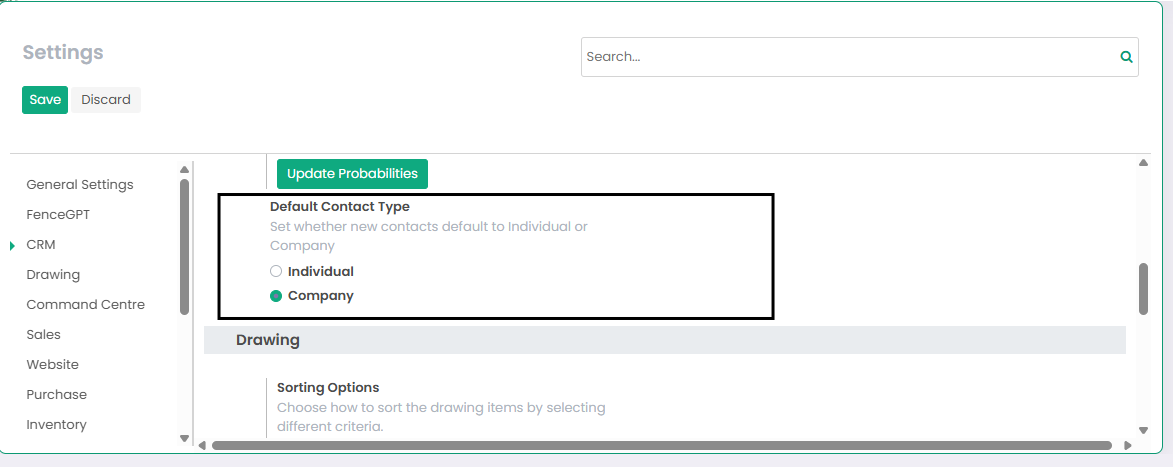
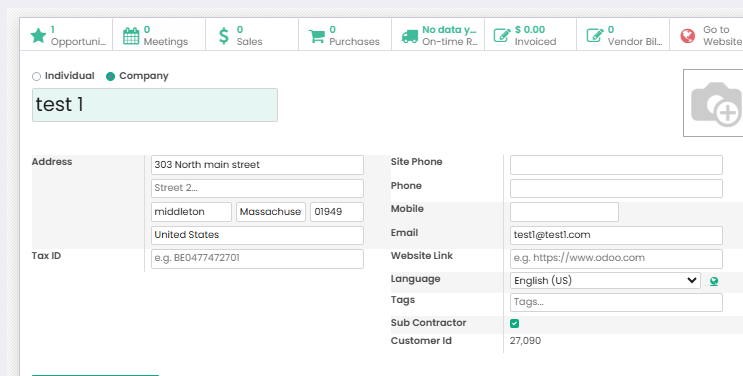
How to default a contact Type
Automatically classify every new contact as an Individual or Company by setting a default contact type — reducing manual work, improving data consistency, and helping your team create contacts faster.